Deleting Points
You can use the Point Configuration Manager utility to delete a single point or multiple points from your system. Alternatively you can use CygNet Explorer to delete a single point at a time. See Deleting Points for more information about that option.
Be aware that if you delete a point that was reporting values to the VHS, the values are not removed from the VHS. If you re-add the point and the new Point ID is not identical to the old Point ID, then the point’s previous history records will be orphaned.
To Delete Points Using the Point Configuration Manager Utility
- From the Point Configuration Manager utility, access the points list as follows.
- Open the utility and select your Point Service (PNT) from the drop-down menu.
- Filter and view points to find the points desired, so that the points you want to delete are included in the results list.
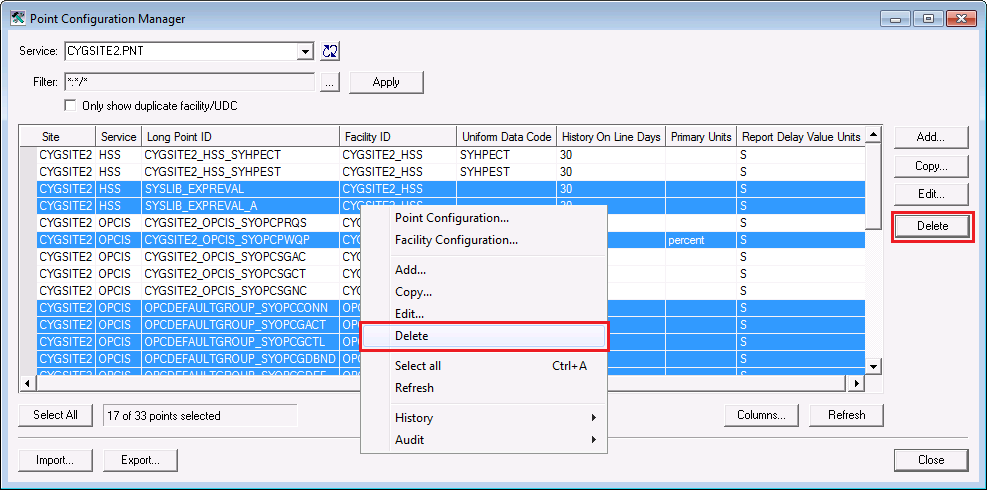
- In the list, select the point or points to be deleted. Use the Select all button to select all points in the list, click to select a single point, or use Ctrl+click or Shift+click to select multiple individual points.
- When you are certain of your selection(s), click Delete (either click the Delete button or right-click and select Delete via the context menu). A confirmation message will appear to verify the point deletion.
Warning: Be certain of your selection before deleting the point(s). There is NO "undo" for this action.
|
Click the thumbnail to see |
- Click Yes to confirm the deletion.

